
How to Enable G Suite Accessibility Features in Your Home Office
Setting up G Suite accessibility features in your home office takes about 15 to 30 minutes and transforms your workspace into an inclusive environment that works for everyone, whether you’re managing visual impairments, motor challenges, or cognitive differences. The process involves enabling built-in tools like screen readers, voice typing, high-contrast themes, and keyboard navigation across Gmail, Docs, Sheets, and other Google Workspace apps.
The beauty of G Suite accessibility lies in its universal design approach. Features originally built for specific disabilities often improve productivity for everyone. Voice typing helps people with repetitive strain injuries and busy parents juggling kids during work calls. High-contrast displays reduce eye strain for anyone working long hours. Keyboard shortcuts speed up workflows whether you use them by necessity or preference.
Your home office setup matters more than ever in 2026, with remote and hybrid work firmly established as permanent arrangements for millions of professionals. Configuring accessibility features isn’t just about accommodation, it’s about creating a workspace that adapts to your needs throughout the day. Morning brain fog, afternoon fatigue, temporary injuries, or permanent conditions all benefit from the same thoughtful adjustments.
This guide walks you through the specific tools you’ll need, the step-by-step configuration process for each major accessibility feature, and how to verify everything works correctly in your daily workflow. You’ll learn practical techniques that integrate naturally into your existing home office routine without disrupting your productivity.
What You’ll Need to Get Started
Before you begin configuring accessibility features, you’ll need a few essentials in place. The good news: most of what you need is probably already in your home office.
Account and Access Requirements
Start with an active Google Workspace (G Suite) account, this includes personal Gmail accounts, Google Workspace Individual, or enterprise accounts through your organization. Most accessibility features work across all account types, though some advanced settings may require admin permissions if you’re using an organizational account. Check with your IT department before making system-wide changes if you’re on a managed account.
Device and Browser Compatibility
G Suite accessibility features work best on up-to-date devices. You’ll need:
- A computer (Windows, Mac, or Chromebook) or mobile device (iOS or Android) running a current operating system
- An updated web browser: Chrome (recommended), Firefox, Safari, or Edge, all support G Suite accessibility features
- Stable internet connection for cloud-based features and real-time collaboration
- Microphone access if you plan to use voice typing or dictation features
- Speakers or headphones for audio feedback and captions in video meetings
Optional Assistive Technology
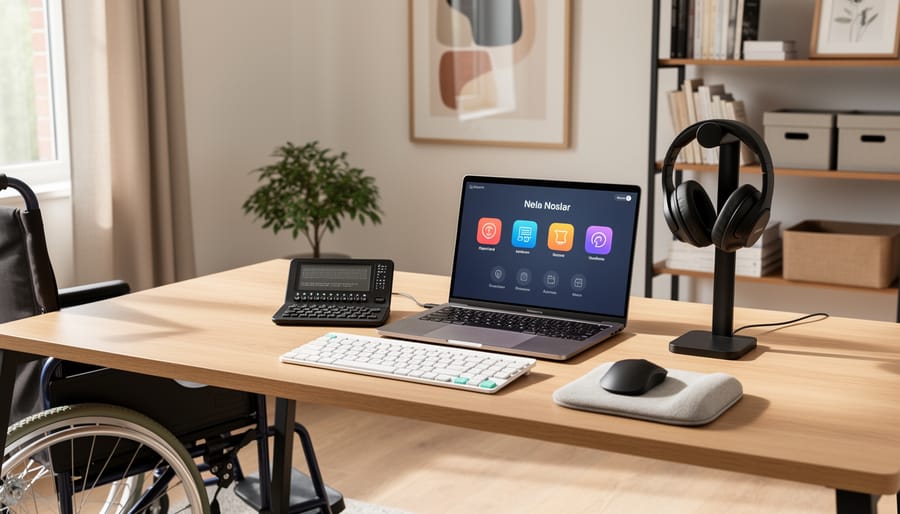
Depending on your specific needs, you may want compatible assistive devices ready. Screen readers like NVDA (Windows) or VoiceOver (Mac/iOS) integrate seamlessly with G Suite applications. Alternative input devices, switch controls, adaptive keyboards, or eye-tracking systems, can enhance your setup, though you can configure most features with standard equipment first and add specialized tools later.
Having these items ready streamlines the setup process and lets you test each accessibility feature as you enable it, ensuring your home office technology adapts to your work style from day one.
Important Considerations Before You Begin
Before you start adjusting accessibility settings, take a few minutes to understand how changes might affect your current setup and workflow. These preliminary checks will save you time and prevent potential headaches down the road.
First, back up your existing G Suite settings. Take screenshots of your current configurations in Gmail, Drive, and other key applications you use daily. Note any custom keyboard shortcuts, display preferences, or notification settings you’ve personalized. If something goes awry during the accessibility configuration process, you’ll have a clear reference point to restore your preferred setup.
Test any new accessibility features in a low-stakes environment first. Create a test document in Google Docs or draft an email in Gmail before applying settings to critical work materials. This approach lets you experiment with voice typing, screen reader navigation, or high contrast modes without risking important content or accidentally sending incomplete messages to colleagues.
Keep in mind that some accessibility features work best with specific browsers or updated software versions. Chrome typically offers the fullest G Suite accessibility support, though Firefox and Edge also work well with most features. Check that your browser is current before you begin, and consider having a backup browser installed in case compatibility issues arise.
Step-by-Step: Enabling Core Accessibility Features
Turn On Screen Reader Support
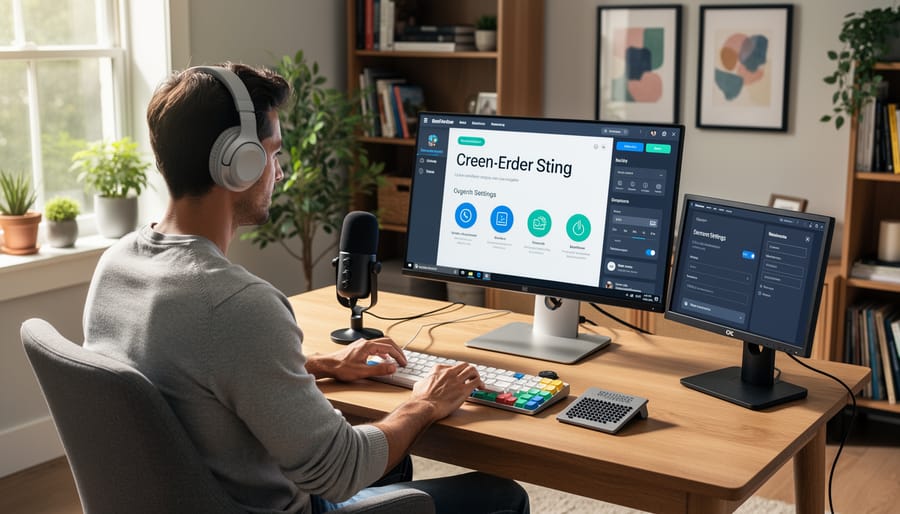
Screen readers transform visual information into speech or Braille, letting you navigate G Suite applications without relying on a mouse or visual cues. Most modern screen readers, JAWS, NVDA, VoiceOver, TalkBack, work with G Suite out of the box, but you need to activate specific compatibility modes within each application to unlock their full navigation power.
- Open Gmail in your browser and press Ctrl+/ (Cmd+/ on Mac) to see available keyboard shortcuts. Look for the message confirming screen reader support is active, if you don’t see it, navigate to Settings (gear icon), select “See all settings,” then under the “General” tab find “Keyboard shortcuts” and turn them on.
- In Google Docs, open any document and press Ctrl+Alt+Z (Cmd+Option+Z on Mac) to enable screen reader support. A notification will confirm the mode is active. This turns on features like heading navigation and proper reading order for complex layouts.
- For Google Sheets, press Ctrl+Alt+Z (Cmd+Option+Z) just like in Docs. Screen reader mode announces cell contents, formulas, and position within the grid. Use Ctrl+Alt+Shift+C to hear column headers and Ctrl+Alt+Shift+R for row headers as you move through cells.
- In Google Slides, enable screen reader support with Ctrl+Alt+Z (Cmd+Option+Z). This lets you navigate between slides using Ctrl+Alt+Up/Down arrows and read slide content in logical order rather than visual layout.
Once enabled, these modes stay active for your account across sessions. Press Ctrl+Alt+H in any G Suite app to hear a complete list of keyboard commands, this becomes your navigation map. In Docs and Slides, use Ctrl+Alt+N and Ctrl+Alt+P to jump between headings, making long documents far easier to scan than reading line by line.
Configure High Contrast and Display Settings
Adjusting visual settings in G Suite creates a workspace that reduces eye strain and improves readability for users with low vision, color blindness, or visual processing differences. You can modify display preferences at both the browser and application levels to match your specific needs.
Start by configuring your browser’s base settings, which affect all G Suite applications. In Chrome, navigate to Settings > Appearance. Here you can adjust page zoom from 75% to 500%, increase font size, and enable high contrast mode. For Chrome’s built-in high contrast, install the High Contrast extension from the Chrome Web Store, which offers invert, grayscale, and custom color schemes that apply across all Google apps.
- Open any G Suite app (Gmail, Docs, Sheets, or Slides) and click your profile picture in the top-right corner.
- Select Settings or Preferences from the dropdown menu.
- Navigate to the Display or Accessibility section within settings.
- Toggle high contrast mode to ON, which increases contrast between text and backgrounds.
- Adjust the color theme by selecting from available options or creating a custom theme with your preferred text and background colors.
- Set your preferred zoom level using the zoom slider or dropdown menu (typically 100% to 200%).
- Click Save or Apply to confirm your changes.
For application-specific adjustments, Google Docs offers additional controls. Click View > Full Screen to minimize distractions, or adjust page width under View > Page Setup. In Gmail, enable the comfortable or compact density setting under Settings > Density to change spacing between elements.
Remember that zoom changes in your browser affect all websites, while application settings apply only to specific G Suite tools. Test different combinations to find what works best for your vision needs and home office lighting conditions.
Set Up Voice Typing and Dictation
Voice typing transforms how you interact with G Suite applications in your home office, letting you draft documents, compose emails, and navigate tasks hands-free. This feature helps users with mobility limitations, repetitive strain injuries, or those who simply think faster than they type.
Before you begin, test your microphone. Click the microphone icon in your system tray or notification area and speak normally. If the input meter responds to your voice, you’re ready. Position the microphone 6-12 inches from your mouth and choose a quiet location, background noise reduces accuracy significantly.
Enable voice typing in Google Docs by opening any document and clicking Tools, then Voice typing. A microphone icon appears on the left side of your screen. Click it once to activate, and it turns red when listening. Speak naturally at your regular pace, including punctuation by saying “comma,” “period,” or “question mark.” To start a new paragraph, say “new line” twice.
For optimal results with speech-to-text across G Suite:
- Select your preferred language and dialect from the dropdown menu above the microphone icon, as accent recognition varies by region
- Speak punctuation commands clearly and pause briefly after each one to help the system register your intent
- Use voice commands like “select [word]” or “delete [phrase]” to edit without touching your keyboard
- Practice with short sentences first, then gradually increase length as you become comfortable with the rhythm
- Review and correct transcription errors immediately, the system learns from your corrections over time
In Gmail, voice typing works within the compose window. Click inside the message body, select Tools, then Voice typing from the menu. The same microphone controls apply, letting you draft emails entirely by voice.
Google Chrome users can enable voice search in the address bar by clicking the microphone icon. This feature extends to Google Calendar and other G Suite applications through browser-level voice input, accessible via your operating system’s accessibility settings.
Enable Captions and Live Transcription
Video calls in your home office become far more inclusive when everyone can follow along visually, regardless of audio clarity or hearing ability. Google Meet includes built-in captioning and transcription that runs in real-time during meetings.
To activate captions during a meeting, click the three-dot “More options” menu at the bottom of the screen, then select “Turn on captions.” Google Meet automatic captions appear at the bottom of your screen as participants speak, using speech recognition to convert audio to text with minimal delay. The feature supports multiple languages, click the captions icon again to choose from available options.
For meeting organizers who want automatic captions enabled by default, open Google Calendar, create or edit a meeting, click “Add Google Meet video conferencing,” then select the gear icon to access Meet settings. Check “Turn on captions” so all participants see the option when they join.
Live transcription, available in some Google Workspace editions, creates a full text record saved to Google Docs after the meeting. Enable it from the same three-dot menu by selecting “Transcription” and “Start transcribing.” The transcript captures who said what, with timestamps, making it searchable long after your home office call ends.
Customize Keyboard Navigation and Shortcuts
Open Gmail, Google Docs, or any G Suite app you use regularly. Press Ctrl+/ (Cmd+/ on Mac) to display a keyboard shortcut menu specific to that application. Each G Suite app has unique shortcuts, this menu shows what’s available without requiring memorization.
Navigate to Settings (usually the gear icon, or press ? then search “settings”). Look for the Keyboard Shortcuts or Accessibility section. Enable “Keyboard shortcuts” if it’s toggled off. In Gmail specifically, go to Settings > See all settings > General, then enable “Keyboard shortcuts” near the top.
To disable mouse-dependent features, turn on “Enable keyboard navigation” in each app’s accessibility preferences. This forces focus indicators (visible outlines around active elements) so you can see where you are as you Tab through menus and buttons.
Practice core navigation patterns: Tab moves forward through elements, Shift+Tab moves backward. Arrow keys navigate within menus or cells. Enter activates buttons and links. Escape closes dialogs or exits editing modes.
For complete mouse-free operation in Google Docs, enable “Screen reader support” under Tools > Accessibility settings, even if you don’t use a screen reader. This unlocks advanced keyboard commands for formatting, commenting, and navigating document structure without pointing and clicking.
Integrating Assistive Technology with Your G Suite Home Office
Most assistive technologies work seamlessly with G Suite once you understand a few connection points. Screen magnifiers like ZoomText and Windows Magnifier integrate directly through your browser, no special plugins required, because G Suite applications run as web apps that respect system-level accessibility settings. If you’re using a dedicated screen magnifier, enable it first at the operating system level, then launch Chrome or your preferred browser; G Suite will automatically inherit those magnification settings and respond to your zoom commands.
Alternative input devices require slightly more setup but offer tremendous flexibility in how you interact with your home office workspace. Eye-tracking systems like Tobii Dynavox and head-pointing devices connect through USB and work with G Suite through specialized software that translates your movements into standard mouse actions. Switch access devices, from single-button switches to sip-and-puff controllers, integrate through Switch Access for Android or third-party utilities like ACAT on Windows, letting you navigate Gmail, Docs, and other apps using the input method that works best for your needs.
Browser extensions dramatically expand G Suite accessibility without requiring hardware changes:
- Screen readers like NVDA and JAWS work natively with Chrome’s accessibility API for full G Suite navigation
- Read&Write for Google Chrome adds text-to-speech, word prediction, and dictionary tools directly into Docs and Gmail
- Mercury Reader strips visual clutter from web-based G Suite interfaces for cleaner screen reader output
- Voice In voice typing extension provides enhanced dictation capabilities beyond Google’s built-in voice typing
- High Contrast extension offers more granular color control than G Suite’s default themes
Physical workspace integration matters too. Proper wire management keeps assistive device cables organized and prevents accidental disconnections during meetings. For Google Meet sessions, positioning your assistive technology correctly is as critical as any video call fix ensure your eye-tracker or alternative pointer doesn’t obstruct your camera or create shadows on your workspace.
Test each integration individually before combining multiple assistive technologies, as some screen readers and browser extensions can conflict with each other. Start with one tool, verify it works reliably with your most-used G Suite application, then gradually layer in additional assistive devices as your home office setup evolves.
Testing and Verifying Your Accessibility Setup
After configuring your G Suite accessibility features, you need to verify that everything works as expected in your actual home office workflow. Testing now prevents frustration later when you’re in the middle of an important task.
Start with a systematic verification process that covers each feature you’ve enabled:
- Open a test Google Doc and activate your screen reader. Navigate through headings, lists, and tables using keyboard commands to confirm audio feedback matches the content structure.
- Launch Gmail with high contrast mode enabled. Check that email text, buttons, and labels remain clearly visible and distinguishable in different lighting conditions at your desk.
- Create a new Google Doc and use voice typing to dictate a full paragraph with punctuation commands. Review the transcription accuracy and note any words that need training.
- Start a Google Meet test call with captions turned on. Speak naturally and verify that captions appear with minimal delay and acceptable accuracy for your speaking pace.
- Navigate through Google Sheets using only your keyboard. Test tab navigation, formula entry, and cell selection without touching your mouse to confirm complete keyboard accessibility.
If something doesn’t work as expected, check that your browser is up to date and that you’ve refreshed the page after changing settings. Many accessibility features require a page reload to activate fully. For voice features, verify your microphone permissions in both your browser and operating system settings.
Create a simple checklist document in Google Keep or Docs listing each feature you’ve enabled and its intended function. Test your setup weekly for the first month, especially after G Suite updates, to catch any changes that might affect accessibility performance in your home office environment.
What to Do After Setup: Maintenance and Updates
Your accessibility setup isn’t a one-and-done task. Settings drift, software updates arrive, and your needs shift over time. Treat this like 5S desk organization maintain what works and eliminate what doesn’t.
Export your current settings as a backup. In G Suite admin console, download your accessibility configurations monthly. Save these files to cloud storage so you can restore preferences if an update resets them. Name files with dates for easy version tracking.
Check for G Suite accessibility updates quarterly. Google releases improvements regularly, often without fanfare. Visit the G Suite release calendar, filter for accessibility announcements, and test new features in a secondary account before applying them to your main workspace.
Train household members who share your home office. Create a simple reference sheet showing which features you’ve enabled and why. If someone adjusts settings during their work session, you’ll know how to restore your configuration quickly. This applies equally whether you’re working in a spacious setup or following 7×10 office tips for tight quarters.
Schedule a settings review every six months. Your vision, mobility, or cognitive needs may change. What felt comfortable in January might need adjustment by July. Test each feature again, disable what you’re not using, and explore new options that have launched since your initial setup.
Document what works. Keep notes on which keyboard shortcuts save you the most time, which voice commands fail consistently, and which display settings reduce eye strain. These insights guide future adjustments and help troubleshoot problems faster.
Common Questions About G Suite Accessibility
Do G Suite accessibility features cost extra?
No, all built-in accessibility features are included with every G Suite plan at no additional cost. Features like screen reader support, voice typing, high contrast modes, and live captions are available to all users regardless of subscription tier.
Will accessibility features work on my older computer or tablet?
Most G Suite accessibility features work on devices from the past five years, though performance varies. Screen reader support and keyboard navigation function well on older hardware, but voice typing and live transcription require more processing power and a stable internet connection.
Can I use accessibility features offline in my home office?
Limited accessibility features work offline through Google Docs, Sheets, and Slides offline mode. Keyboard navigation and basic screen reader support remain functional, but features requiring real-time processing like voice typing and live captions need an internet connection.
What if my company’s IT department restricts certain accessibility settings?
Contact your IT administrator to request accessibility accommodations, which organizations are typically required to provide. Most companies can enable individual accessibility features without compromising security, and many have formal request processes for assistive technology needs.
These answers address the practical concerns most home office users face when implementing accessibility features. The questions reflect real decision points: whether budget constraints matter, if existing equipment suffices, what works without constant connectivity, and how to navigate workplace policies.
When you’re comparing productivity suites, G Suite’s accessibility features integrate more seamlessly across applications than many competitors. Microsoft 365 offers comparable screen reader support and dictation, but G Suite’s browser-based approach means accessibility settings follow you across devices without reinstallation. Apple’s iWork suite provides excellent native accessibility on Mac and iOS devices but lacks the cross-platform consistency that makes G Suite valuable for mixed-device home offices.
The web-based nature of G Suite creates both advantages and limitations. You can access your configured accessibility settings from any device with a browser, transforming any workspace into a productivity powerhouse without carrying specialized software. However, this same dependency means reduced functionality in low-connectivity situations, which matters if your home office experiences unreliable internet.
Setting up G Suite accessibility features in your home office goes far beyond accommodation, it’s about creating a workspace that truly works for you. Whether you’re managing a visual impairment, navigating motor challenges, or simply looking for more efficient ways to work, these tools make your digital environment more flexible and responsive to your needs.
The beauty of accessible technology lies in its universal benefits. Voice typing speeds up documentation for everyone, not just users with mobility limitations. Keyboard shortcuts boost productivity across the board. High contrast modes reduce eye strain during long work sessions, regardless of your vision status. When you design your home office technology around accessibility principles, you’re building a workspace that adapts to different tasks, energy levels, and working styles throughout your day.
As Google continues expanding G Suite accessibility features, make it a habit to revisit your settings periodically. New tools and improvements appear regularly, often addressing needs you didn’t realize could be solved. The accessibility menu in your G Suite applications is worth exploring whenever you encounter a workflow challenge, there might already be a feature designed to help.
Your home office should support the way you actually work, not force you into rigid patterns. By taking control of these accessibility settings, you’ve created a more inclusive, adaptable workspace that serves you better today and grows with your changing needs tomorrow.